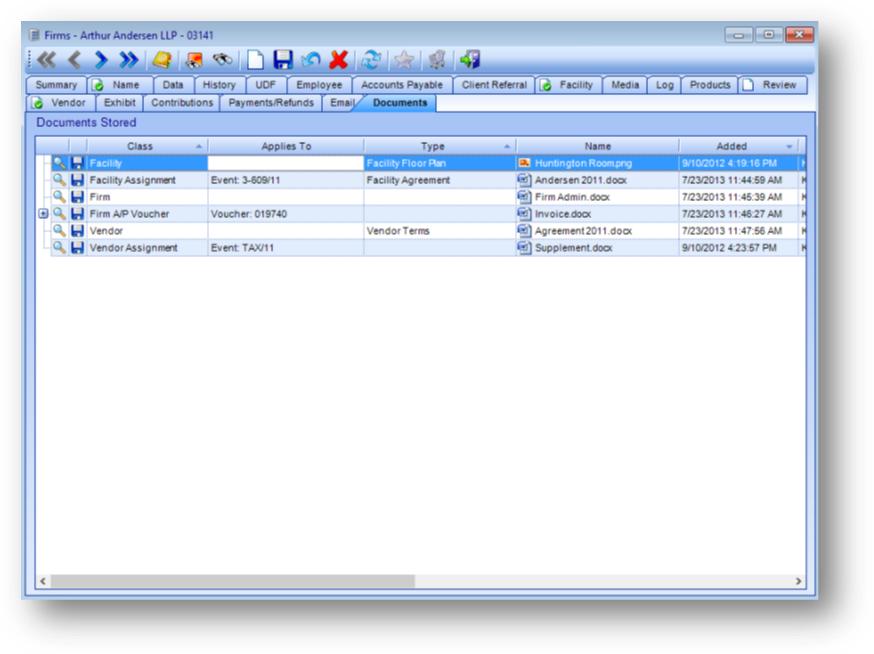
Purpose: The Contact tab tracks who are contacts for the firm for the specified contact types. The screen is broken into two sections as follows.
Launch Point: This tab can be launched from:
•Firms → File Maintenance →
Example:
Contacts
The Contacts grid shows the individuals who have been set as a contact for this firm. Note: If the firm is a branch or main office, the individual may be linked to a branch or main office.
Contact Information
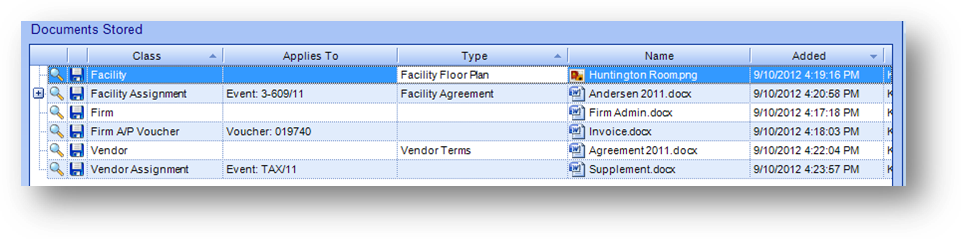
This section displays details for the contact entry highlighted in the Contacts grid. The fields in this section are controlled by the in-place buttons in the lower left of the window.
To add a new contact record, click on the in-place Add button.
This will enable the fields in the Contact Information section and add a blank record in the Contacts grid. Select the Contact and Contact Type, then click the in-place Save button. On the save the data in the new blank row in the Contacts grid will be filled in.
To edit first highlight the contact record with which you want to work in the Contacts grid. Then click the in-place Edit button. This will enable the fields in this section. Make changes as needed and click the in-place Save button.
To delete a contact record, first highlight the contact record to delete in the Contacts grid. Then click the in-place Delete button. When the in-place Delete button is clicked, the user will be asked to confirm deletion in the following pop-up window:
Contact: Allows for selection of an individual linked to the firm. If the firm is a branch or main office, can also select an individual linked to a branch or main office of the firm.
Contact Type: Defines what role/functions this person is a contact for. The list in this field is hard-coded. Default values are: “Firm Dues Billing”, “Hiring”, “Human Resources”, and “Professional Development/CPE”. Additional contact types can be added by CDS, with certain restrictions.